> For the complete documentation index, see [llms.txt](https://docs.basedbot.app/llms.txt). Markdown versions of documentation pages are available by appending `.md` to page URLs; this page is available as [Markdown](https://docs.basedbot.app/web-app/webapp/portfolio.md).
# Portfolio
The Portfolio page gives you a complete overview of your holdings, trade history, and daily performance across all chains and wallets.
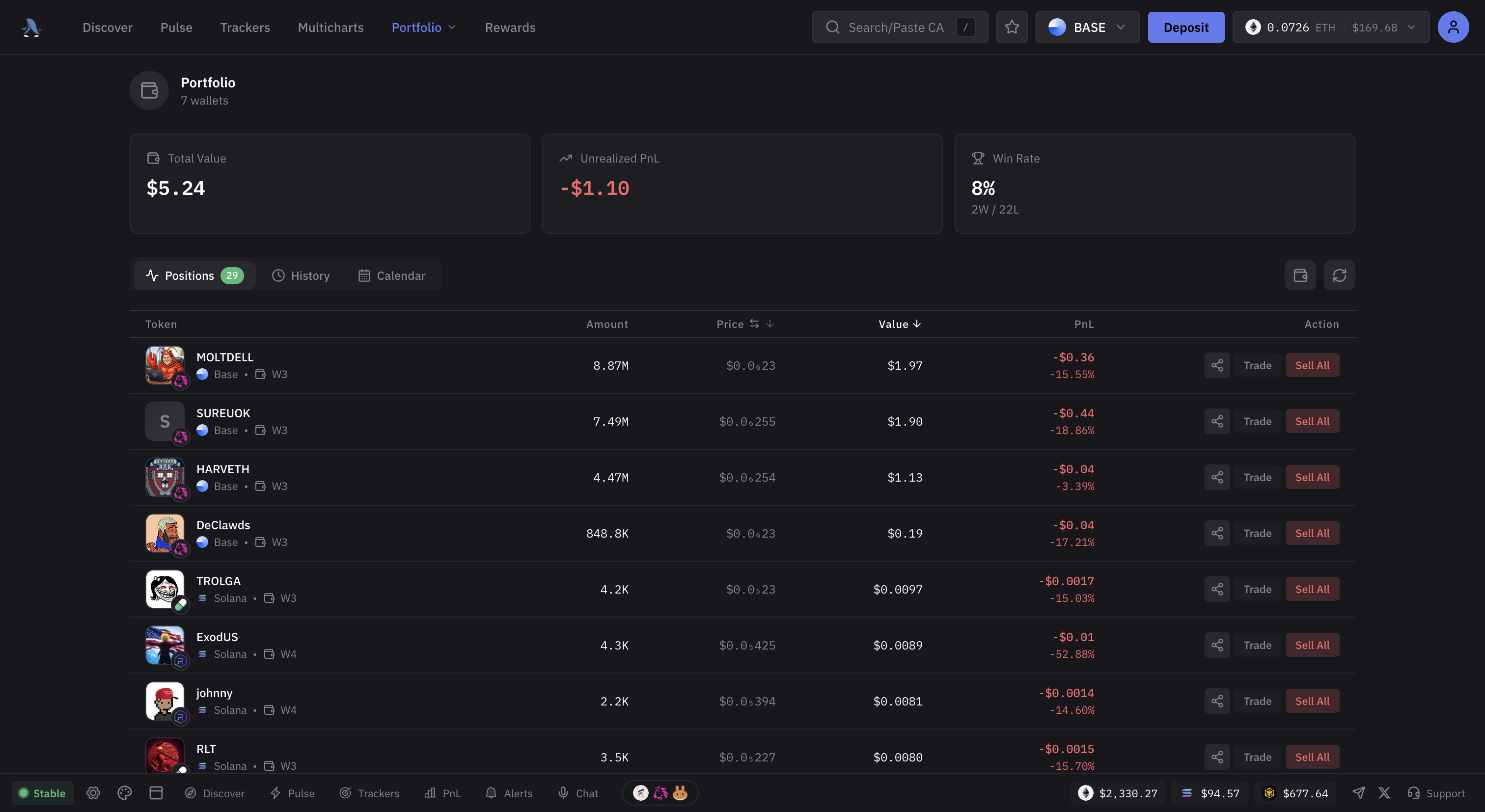
Portfolio — positions overview
## Filters
At the top of the page, filter your portfolio by:
* **Chain** -- view positions on a specific chain or all chains
* **Wallet** -- filter by a specific wallet if you use multi-wallet
## Unrealized PnL Summary
A summary bar at the top shows your total unrealized profit and loss across all open positions.
## Positions Tab
The default tab lists all your current token holdings:
| Column | Description |
| ----------- | --------------------------------------------------------- |
| **Token** | Token name, symbol, and chain |
| **Value** | Current USD value of your holding |
| **PnL** | Unrealized profit/loss in USD and percentage |
| **Actions** | Share button (generate a PnL share card), Sell All button |
## History Tab
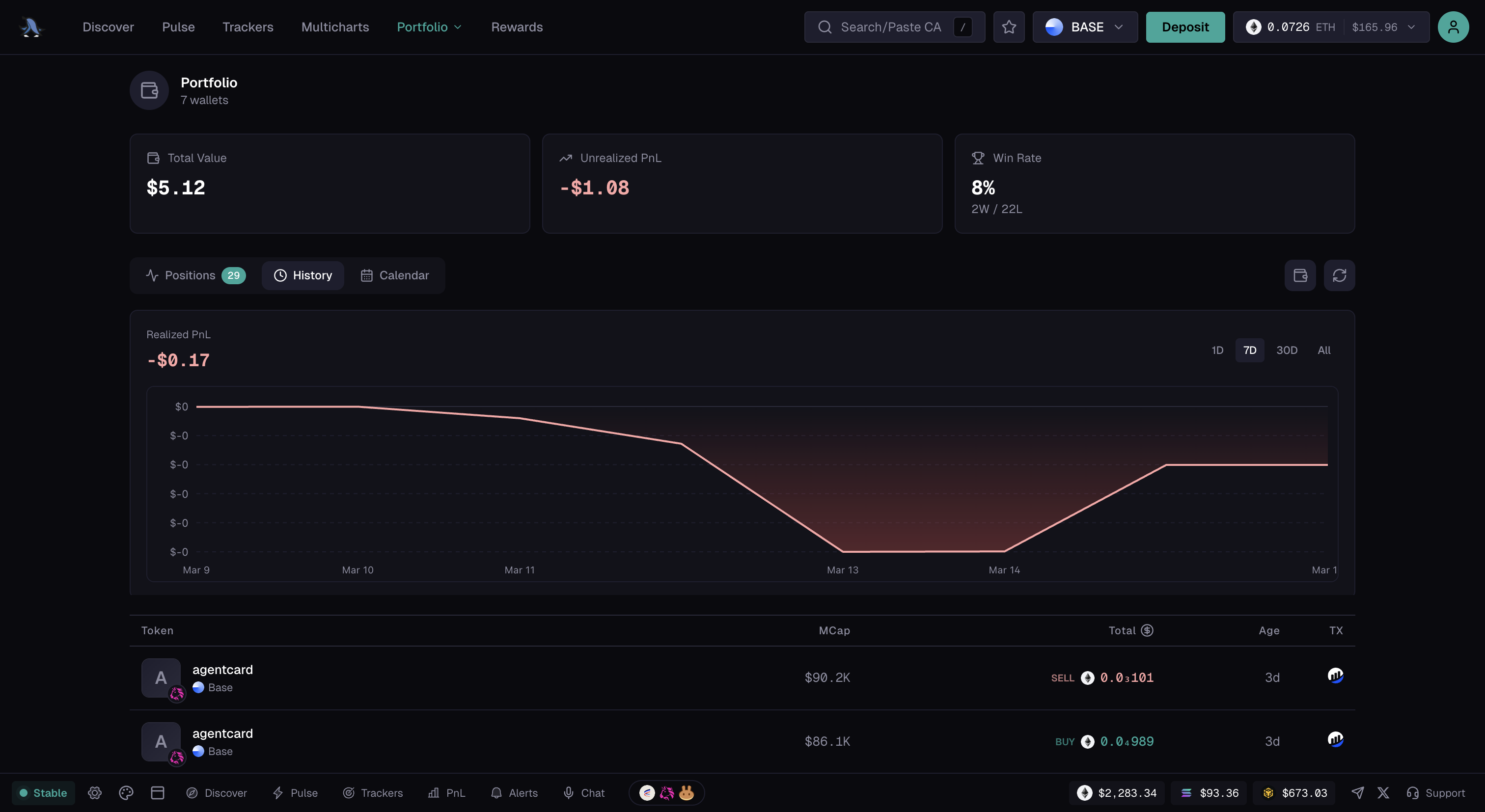
The History tab shows your closed trade history with entry price, exit price, and realized PnL for each trade.
Trade history showing closed positions and realized PnL
## Calendar Tab
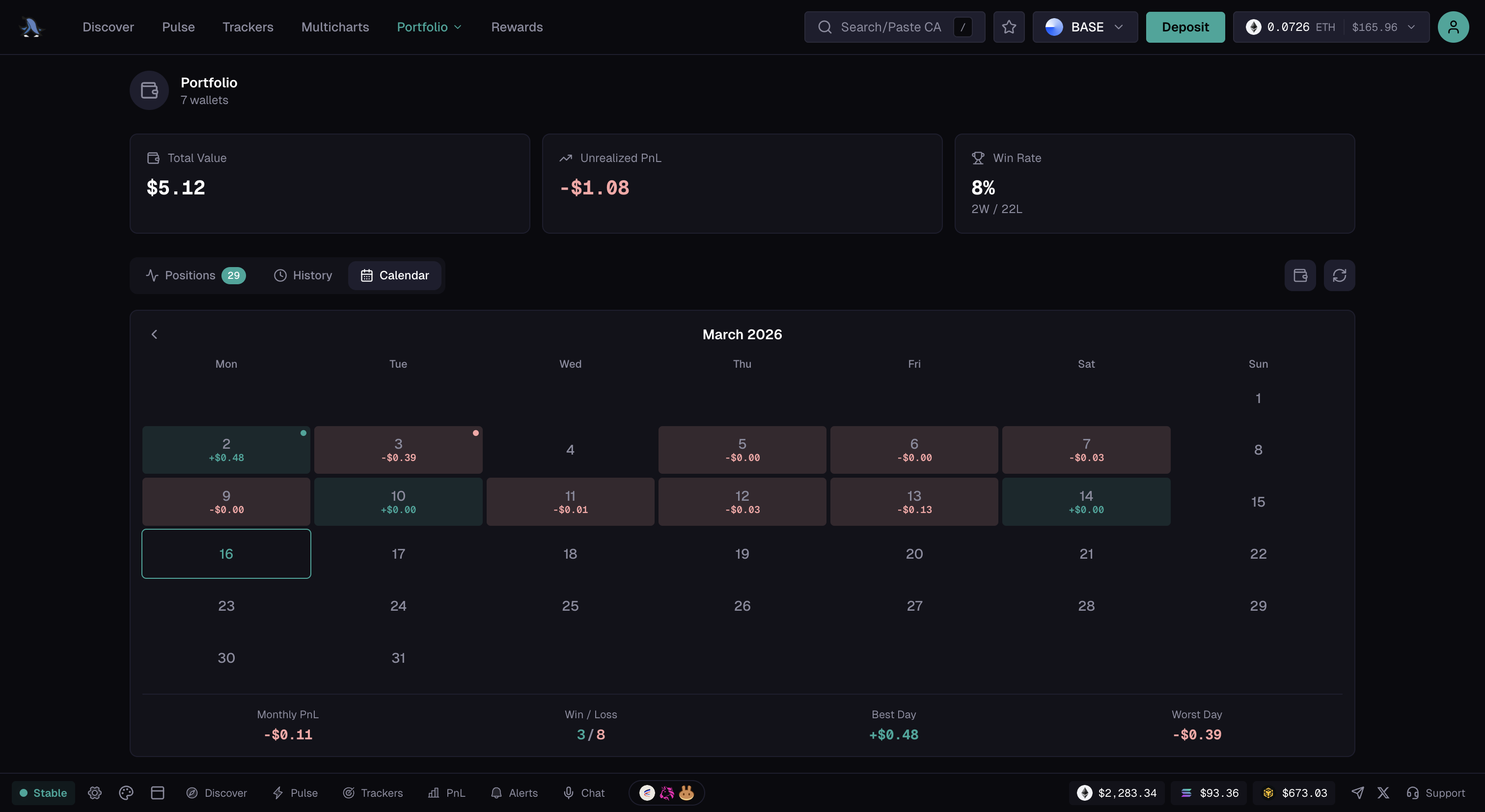
The Calendar tab displays a daily PnL calendar view, making it easy to see which days were profitable and which were not. Each day shows your net realized PnL.
PnL calendar view with daily profit and loss
## Wallets Panel
Open the Wallets panel from the Portfolio page to manage your wallets: create a new one or import an existing one with **Import**.
Tap a wallet to open its drawer:
* **Export Key**: reveal that wallet's private key
* **Archive** / **Unarchive**: block or resume trading and transfers on that wallet; archiving also cancels its pending orders and automations (funds and keys are untouched, recreate the automations after unarchiving)
* **Delete wallet**
**Archive** is hidden when your account only has one visible wallet, and on your Preferred wallet. Add another wallet or change your Preferred wallet first.
The checkbox next to each wallet in the Wallets list is a positions filter only: it controls which wallets' positions show in the table below, it does not archive or hide the wallet itself.
---
# Agent Instructions
This documentation is published with GitBook. GitBook is the documentation platform designed so that both humans and AI agents can read, navigate, and reason over technical content effectively. Learn more at gitbook.com.
## Querying This Documentation
If you need additional information that is not directly available in this page, you can query the documentation by asking a question.
Perform an HTTP GET request on the following URL with the `ask` and `goal` query parameters:
```
GET https://docs.basedbot.app/web-app/webapp/portfolio.md?ask=&goal=
```
`ask` is the immediate question: it should be specific, self-contained, and written in natural language.
`goal` is what the user is ultimately trying to achieve, the reason they need the answer. Sharing it helps GitBook give you a better, more relevant answer. A goal is most helpful when it describes the outcome the user wants rather than restating the question. For example, with `ask=how do I create an API token`, a goal like `automate deployments from our CI pipeline` lets GitBook tailor the answer to that use case.
The response will contain a direct answer to the question and relevant excerpts and sources from the documentation.
Use this mechanism when the answer is not explicitly present in the current page, you need clarification or additional context, or you want to retrieve related documentation sections.