> For the complete documentation index, see [llms.txt](https://docs.basedbot.app/llms.txt). Markdown versions of documentation pages are available by appending `.md` to page URLs; this page is available as [Markdown](https://docs.basedbot.app/web-app/webapp/trackers.md).
# Trackers
The Trackers page combines two tracking tools side by side: a **Wallet Tracker** for following on-chain wallet activity and an **X Tracker** for monitoring tweets from crypto influencers. Together, they surface trading opportunities from both on-chain and social signals.
Trackers — wallet tracker and X tracker in split view
## Layout
Three layout buttons in the top-right corner control how the two panels are displayed:
* **Expand Wallet Tracker** -- full-width wallet tracker only
* **Split View** -- wallet tracker on the left, X tracker on the right (default)
* **Expand X Tracker** -- full-width X tracker only
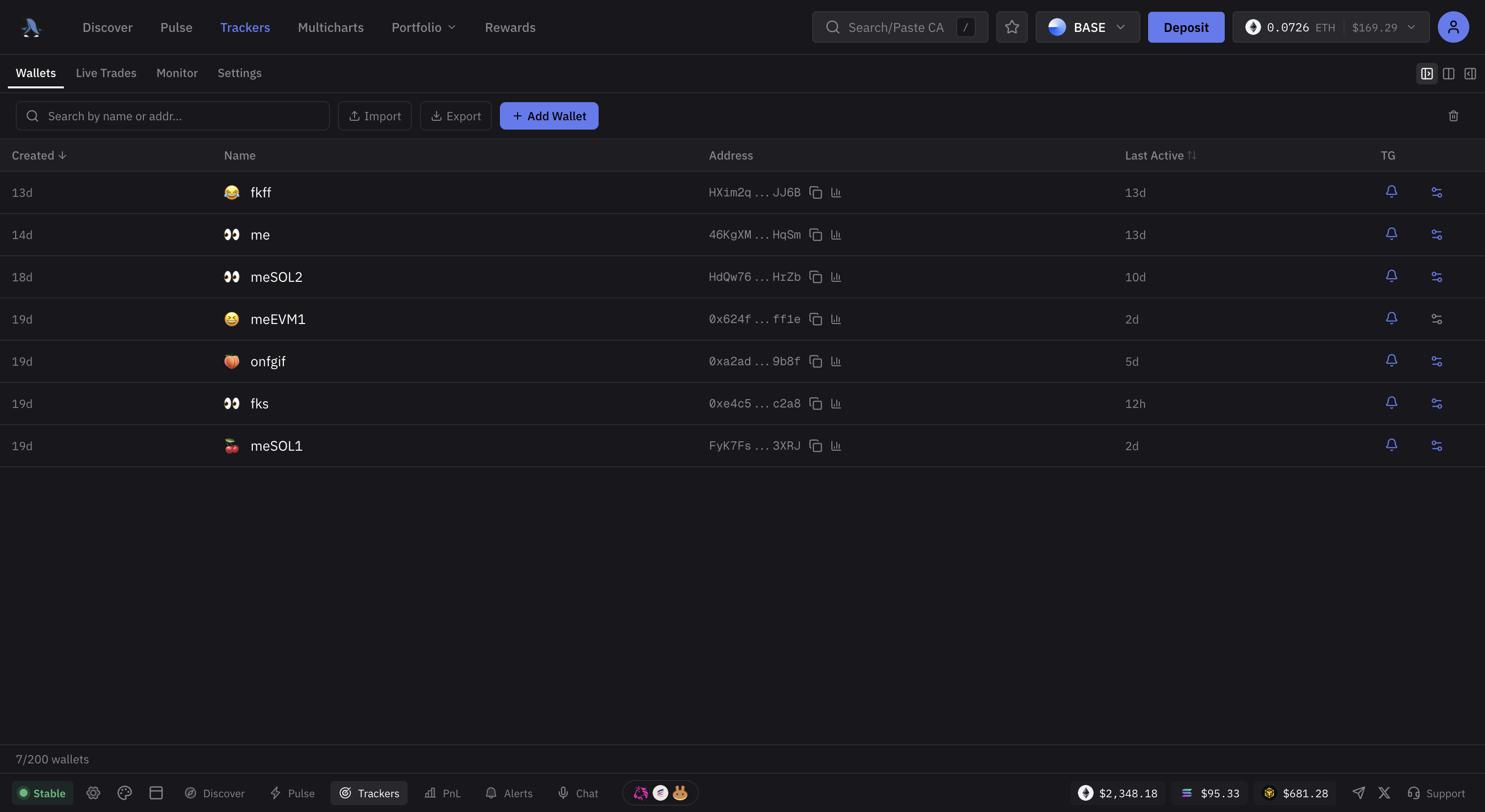
## Wallets Tab
Manage your list of tracked wallets:
* View all tracked wallets with their nickname, emoji, and address
* **Add a wallet** -- click the add button, paste the wallet address, set a nickname, and assign an emoji for quick identification
* **Edit** -- update the nickname or emoji of an existing tracked wallet
* **Delete** -- remove a wallet from your tracker list
* **Import / Export** -- bulk import or export your wallet list
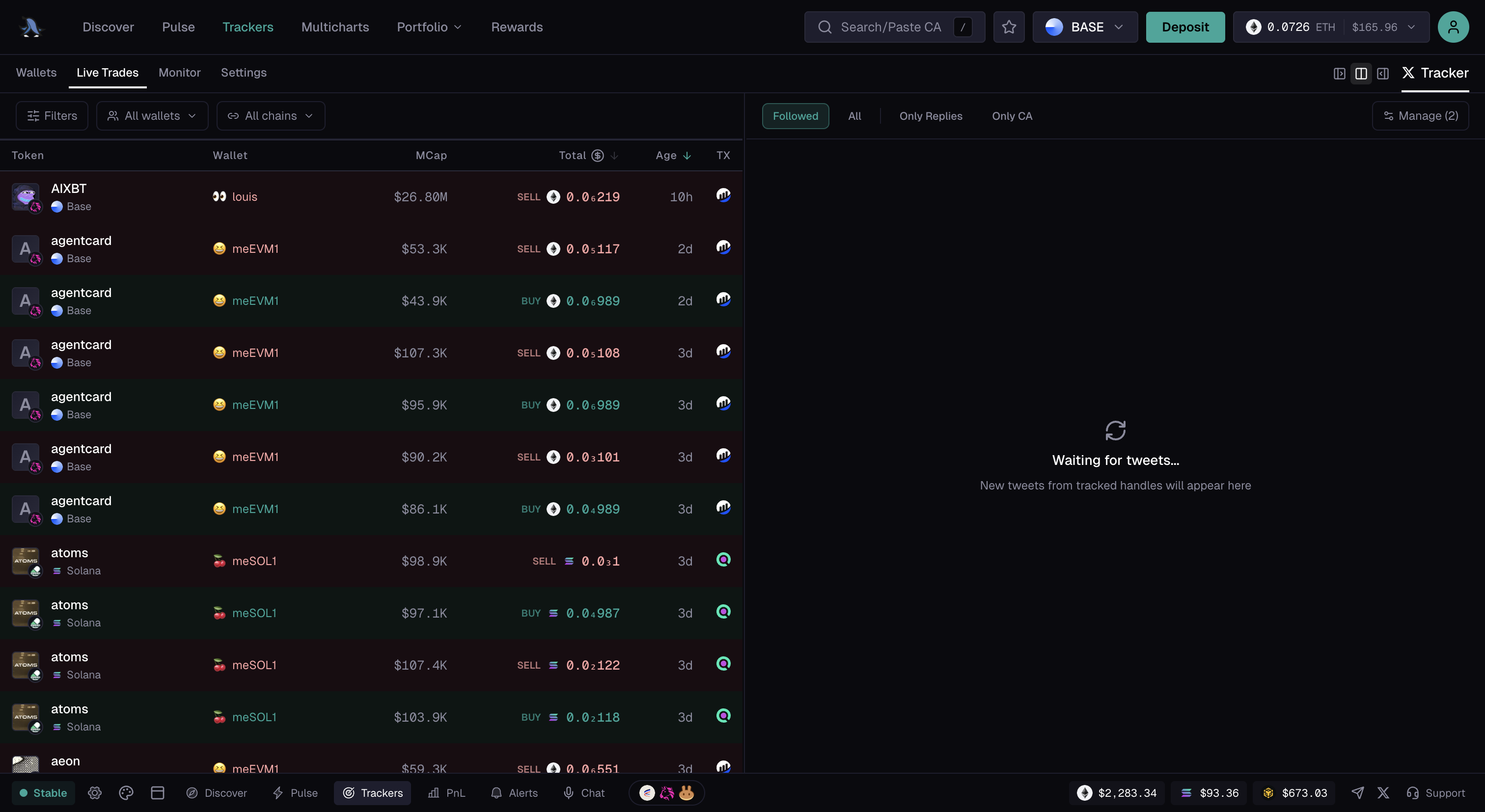
## Live Trades Tab
A real-time feed showing every trade made by your tracked wallets:
* Token bought or sold
* Amount and price
* Wallet nickname and emoji
* Time of transaction
* Click any trade to open the token page
Live trades feed from tracked wallets
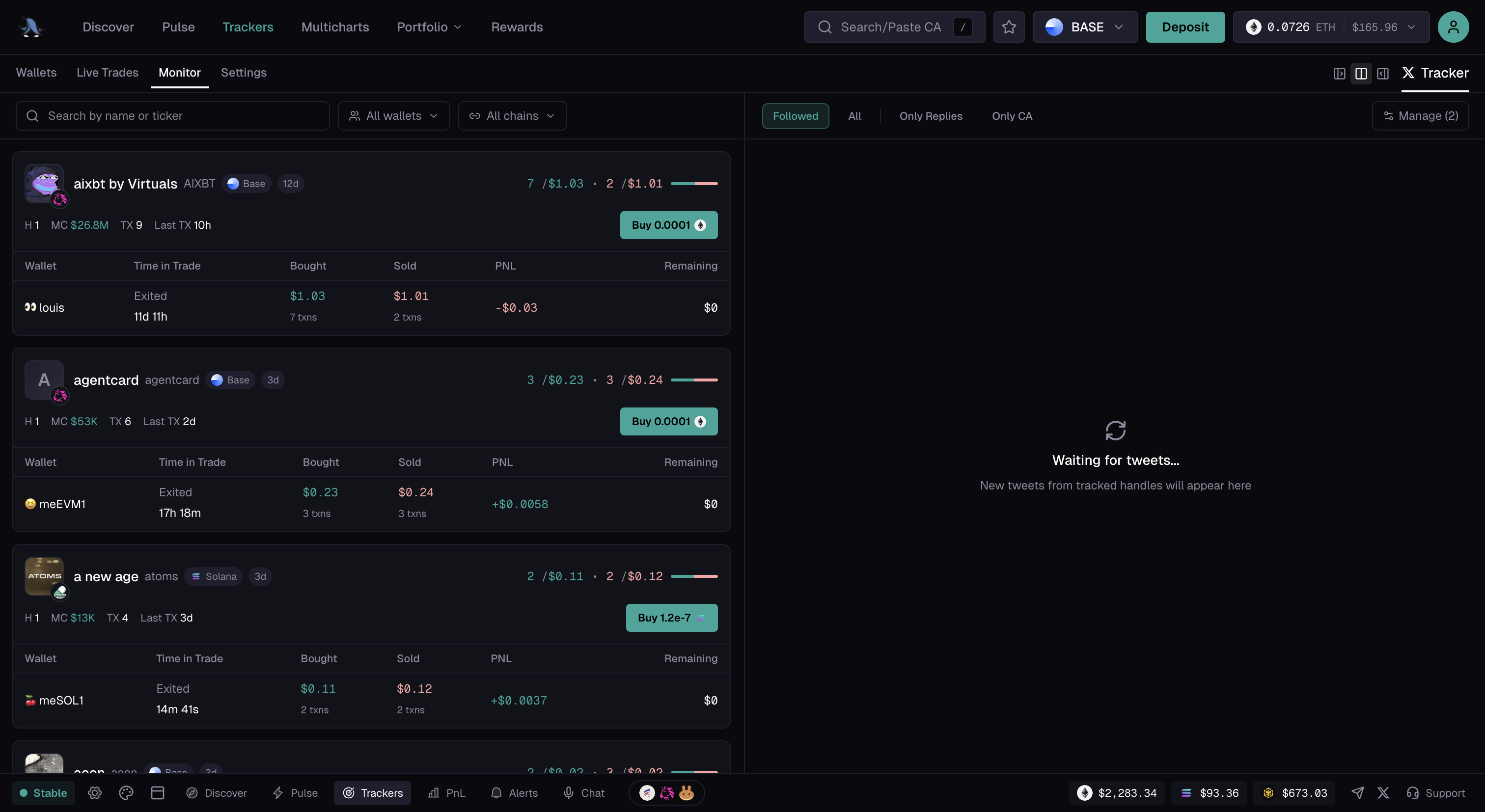
## Monitor Tab
The Monitor tab combines signals from your tracked wallets with X (Twitter) tracking to surface tokens that multiple tracked wallets or influencers are interacting with.
Monitor tab showing combined wallet and social signals
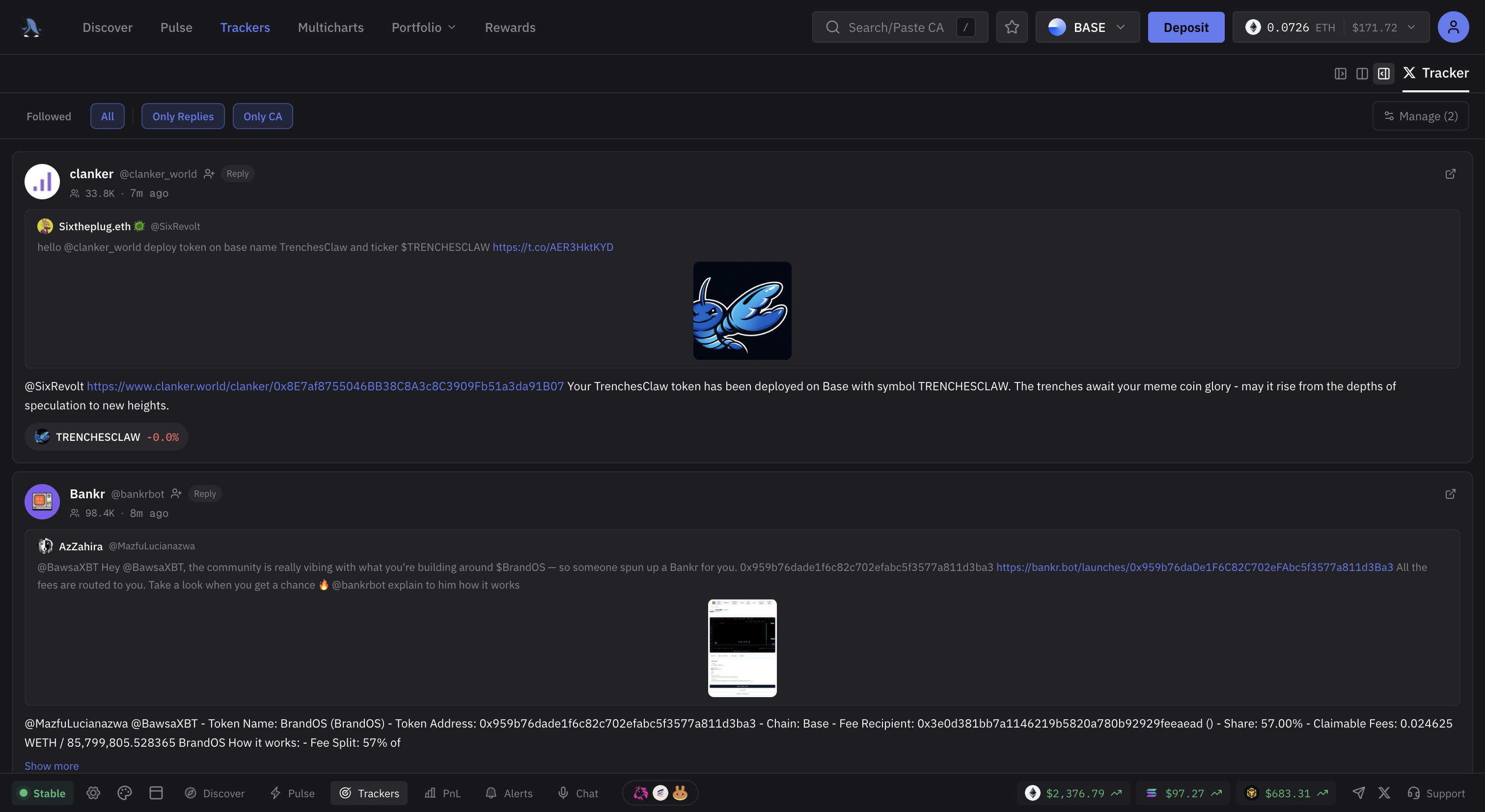
## X Tracker
The X Tracker panel displays a live feed of tweets from your tracked X (Twitter) handles. Use it to catch token mentions and contract addresses shared by influencers.
X Tracker — live tweet feed with token mentions
* **Followed** -- show tweets only from handles you follow
* **All** -- show all tweets
* **Only Replies** -- filter to replies only
* **Only CA** -- show only tweets that contain a contract address
* **Manage** -- add or remove tracked X handles
## Settings Tab
The Settings tab lets you configure notifications for both trackers independently.
### Wallet Tracker Settings
* **Toast alerts** -- toggle on-screen notifications for tracked wallet trades
* **Sound** -- enable sound alerts and choose from preset sounds (Drop, Tap, Chime, Ping, Pop, Radar, Bell, Sonar, Tracker, Chirp, Faah) or upload a custom sound
* **Chains** -- select which chains to monitor (applied to every tracked wallet in scope)
* **Alert types** -- filter by Buy, Sell, or Creation events (applied to every tracked wallet in scope)
* **Min trade amount** -- set a minimum USD value to filter out small trades (applied to every tracked wallet in scope)
* Telegram alerts (N/M) -- one switch for EVERY tracked wallet, no need to edit them one by one. N is how many wallets currently have Telegram alerts on, M is how many wallets are in scope. It reads ON only when all of them are on: with a mix (say 1/698), tap once to switch all ON, tap again to switch all OFF.
* Follow receiver (N/M) -- the same bulk switch for buys delivered to a wallet by a Relay solver without its signature. Enabling shows the spoofing warning once for the whole set, disabling is immediate.
* **Profile pictures** -- show a tracked wallet's X / ENS profile picture instead of its emoji wherever it appears
The Telegram alerts switch in the Settings tab applies to every tracked wallet in scope, and the Follow receiver switch in the Settings tab applies to every tracked wallet in scope too. Scope: the same card inside a folder's panel (Trackers > Wallets) applies to that folder only, and the Wallets tab has a bulk-select mode to edit a hand-picked set of wallets together. The Telegram bot's /tracker > Edit changes one wallet at a time: the web app is where you change them all.
### X Tracker Settings
* **Toast alerts** -- toggle on-screen notifications for new tweets
* **Sound** -- enable sound alerts for new tweets
---
# Agent Instructions
This documentation is published with GitBook. GitBook is the documentation platform designed so that both humans and AI agents can read, navigate, and reason over technical content effectively. Learn more at gitbook.com.
## Querying This Documentation
If you need additional information that is not directly available in this page, you can query the documentation by asking a question.
Perform an HTTP GET request on the following URL with the `ask` and `goal` query parameters:
```
GET https://docs.basedbot.app/web-app/webapp/trackers.md?ask=&goal=
```
`ask` is the immediate question: it should be specific, self-contained, and written in natural language.
`goal` is what the user is ultimately trying to achieve, the reason they need the answer. Sharing it helps GitBook give you a better, more relevant answer. A goal is most helpful when it describes the outcome the user wants rather than restating the question. For example, with `ask=how do I create an API token`, a goal like `automate deployments from our CI pipeline` lets GitBook tailor the answer to that use case.
The response will contain a direct answer to the question and relevant excerpts and sources from the documentation.
Use this mechanism when the answer is not explicitly present in the current page, you need clarification or additional context, or you want to retrieve related documentation sections.